
What to have ready
Setting up Polish IPTV normally takes less time than a cup of tea. To keep it that way, sort out three things first. Your broadband: allow roughly 15 Mbps for HD, 25 Mbps for Full HD and about 50 Mbps for 4K. Your main screen: decide whether you will watch mostly on the living-room TV, a phone or a laptop. Your login: it arrives on WhatsApp once your payment has been confirmed.
Not ordered yet? Start on the prices page and choose a period. The steps below apply to every device; notes for specific types of hardware follow further down.
Setup in eight steps
- Update the device. Open the system settings on your TV, box, phone or tablet and install any pending updates. An up-to-date system avoids a surprising number of later errors.
- Connect to your network. Where you can, plug the TV or box into the router with an Ethernet cable. If Wi-Fi is the only option, use the 5 GHz band and keep the router out of cupboards and away from the back of the television.
- Install the player app. Download the IPTV player we name in your WhatsApp chat from your device’s official app store. Do not sideload files from unknown websites.
- Open the app and allow access. On first launch the player usually asks for network permission. Accept it, otherwise it cannot load any channels.
- Enter your login. Copy the details from our message carefully. Watch for capital letters and for stray spaces at the end, which often sneak in when you paste.
- Let the channel list load. The first sign-in pulls in the full catalogue. With 55,000+ live channels and more than 90,000 titles on demand this can take a little while, so leave the app open until it finishes.
- Turn on the programme guide. In the settings, enable the EPG and refresh it. From then on each channel shows what is on now and what follows.
- Save favourites and set the quality. Mark the Polish channels you watch most as favourites so you are not scrolling every evening. Start in HD and only step up once the picture has held steady for a whole evening.
Device notes
Smart TV
Most recent televisions include an app store. If the player does not appear, check that the store account is set to the country you live in and that the TV software is current. Very old sets without a store are better served by a streaming box.
Streaming box on HDMI
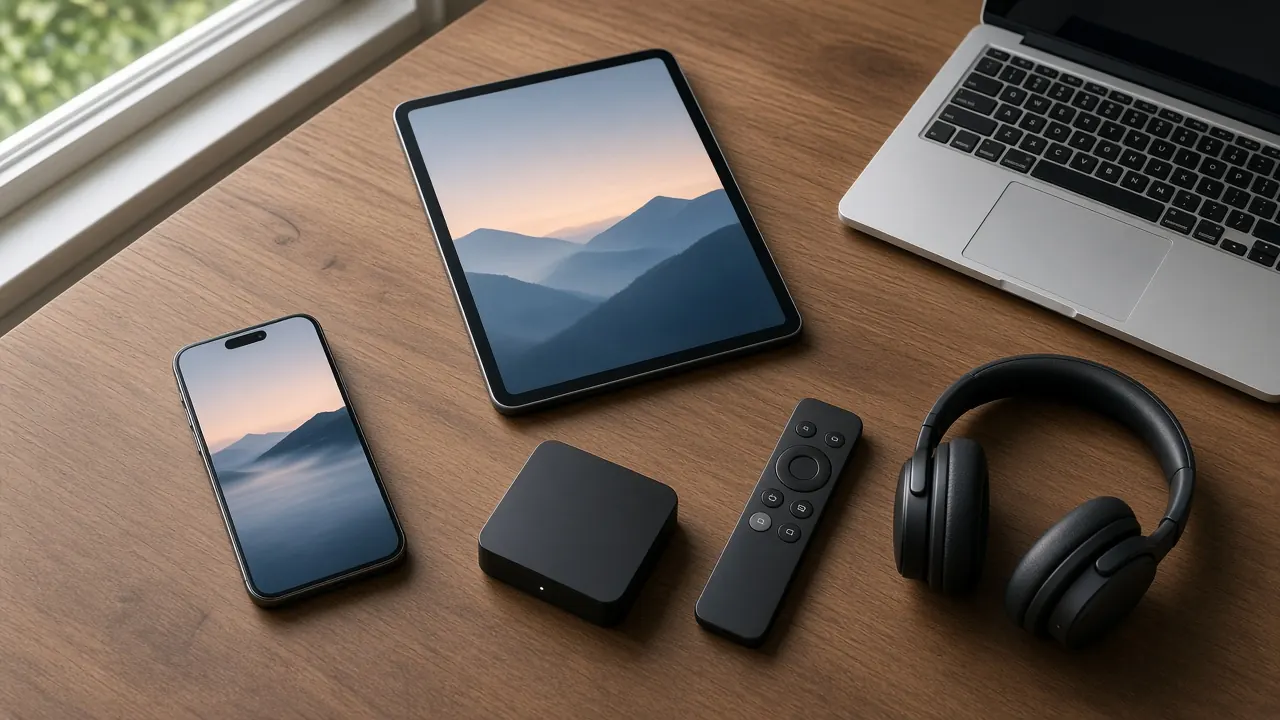
A box gives an older screen a second life. Plug it into an unused HDMI port, switch the TV to that input and follow the eight steps above using the box’s own remote.
Phone and tablet
Install the player from your device’s app store. On mobile data, choose a lower quality setting on purpose, or a single match can eat a large share of your monthly allowance.
Laptop and desktop
On a computer you use a player application for your operating system. It is a practical option in a shared house, a student room or a site cabin where there is no television.
Using timeshift and the VPN
Channels that support timeshift are usually marked with their own icon in the guide. Select a programme that is already running or aired recently and start it from the beginning. For viewers on US time, this is how the Polish evening news becomes a breakfast programme.
Only set up the included VPN if you actually need it, for example in a hotel or on public Wi-Fi. Ask in the chat and we will send what you need. On your own home router it is normally an unnecessary extra step.
Troubleshooting
- Login rejected: type the details in by hand rather than pasting, and look out for look-alike characters such as zero and capital O.
- Picture freezing or buffering: drop the resolution by one step, restart the router and see whether a cable instead of Wi-Fi solves it.
- Empty programme guide: refresh the EPG manually in the player settings and give it a few minutes to download.
- One channel will not start: switch to another channel and back, or restart the app so it fetches the latest line-up.
- Sound but no picture: lower the quality setting first; some older TVs struggle with 4K streams even when the connection is fine.
Still stuck? Send a screenshot of the error to +44 7576 966392 on WhatsApp. A picture lets us narrow down the problem far faster than a long description. You will find more answers in the FAQ and an overview of the service on the English home page. Detailed device guides in Polish are in the installation centre.